Vector AI assistant
A conversational interface over the project. Ask what is missing, ask what the project is about, or instruct it to build something. Answers are grounded in the scoped context, and the assistant can act, not only answer
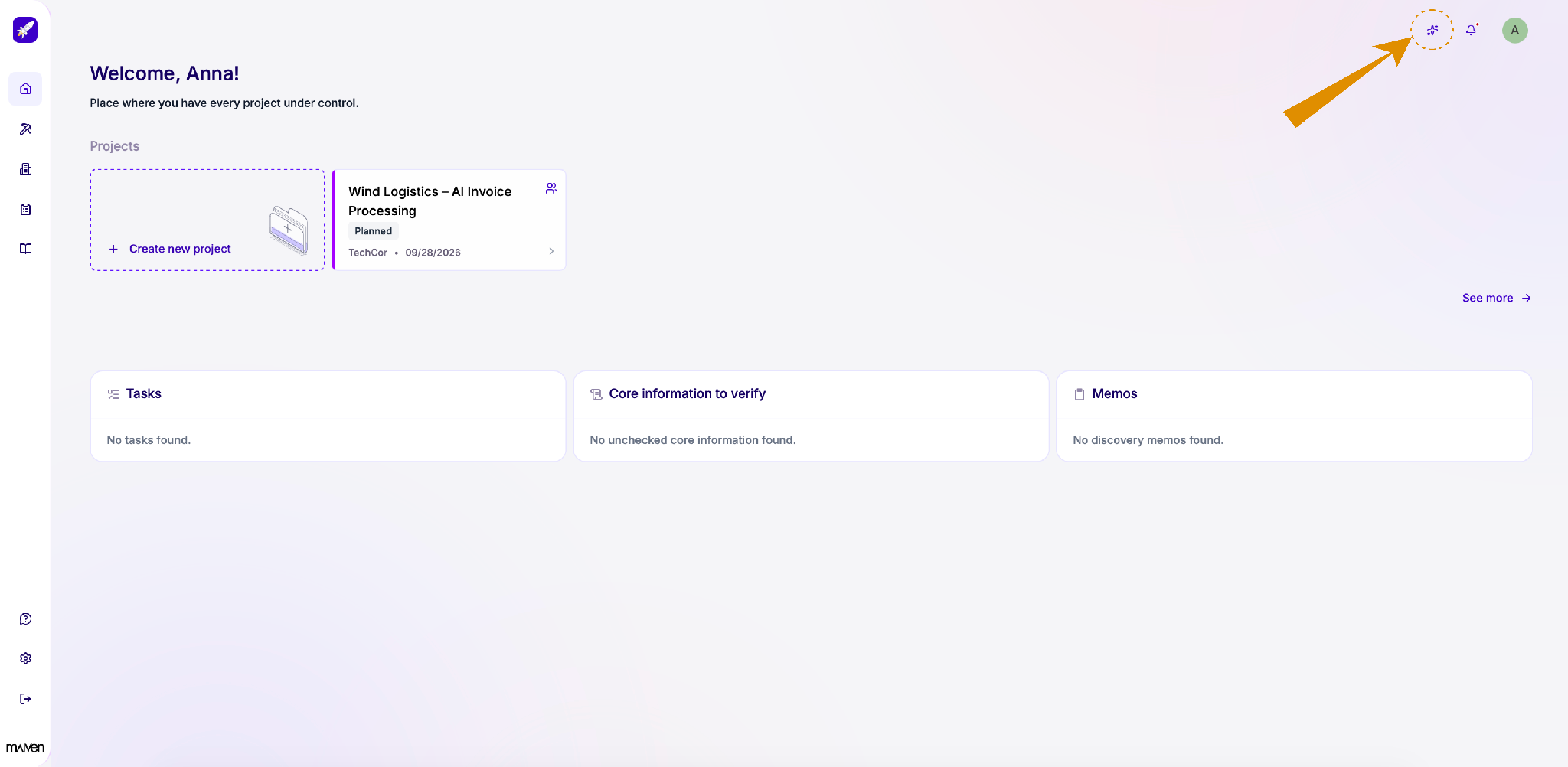
Need a quick answer about your projects? Click the sparkle icon in the top-right corner to open Vector AI, your AI assistant. You can ask it questions about your project data, get summaries, or find information without searching through each project yourself.
The icon is available at the top of every page, so Vector AI is always one click away.
Chat with Vector
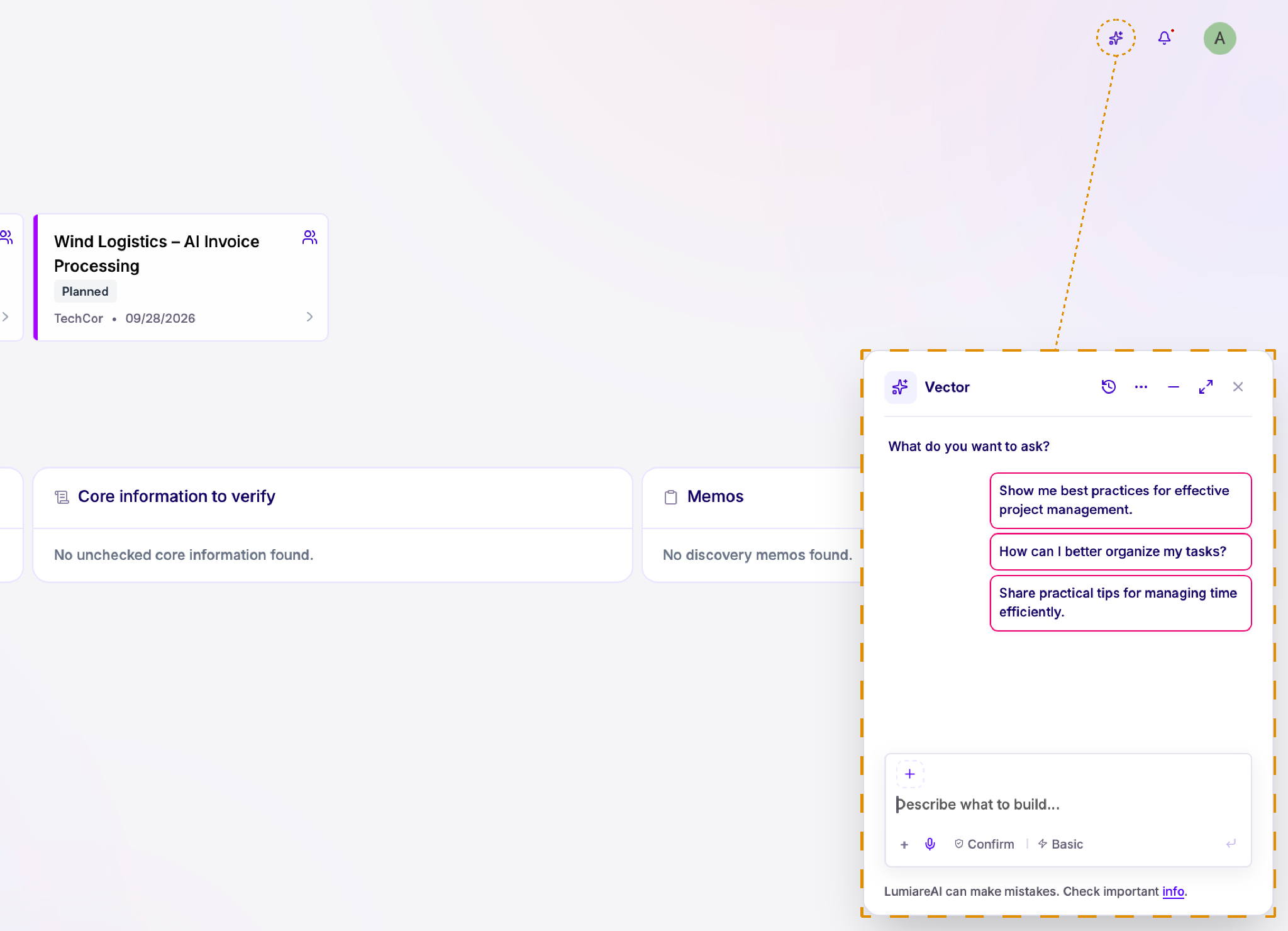
Vector opens as a chat panel on the right side of the screen. Type your question in the message field and press Enter, or pick one of the suggested prompts to get started.
Message options. Click + to add files or context to your message, or the microphone icon to speak instead of typing.
Below the message field, you can also switch the response mode. For example, Confirm asks for your approval before Vector takes any action, and Basic sets the response level.
Panel controls. Use the icons at the top of the panel to view your chat history, open more options, minimize the panel, expand it to full size, or close it.
Like any AI assistant, Vector can make mistakes, so double-check important information before relying on it.
Set up your Vector session
Click the expand icon in the Vector panel to open it in full-screen mode, which gives you more space for longer conversations.
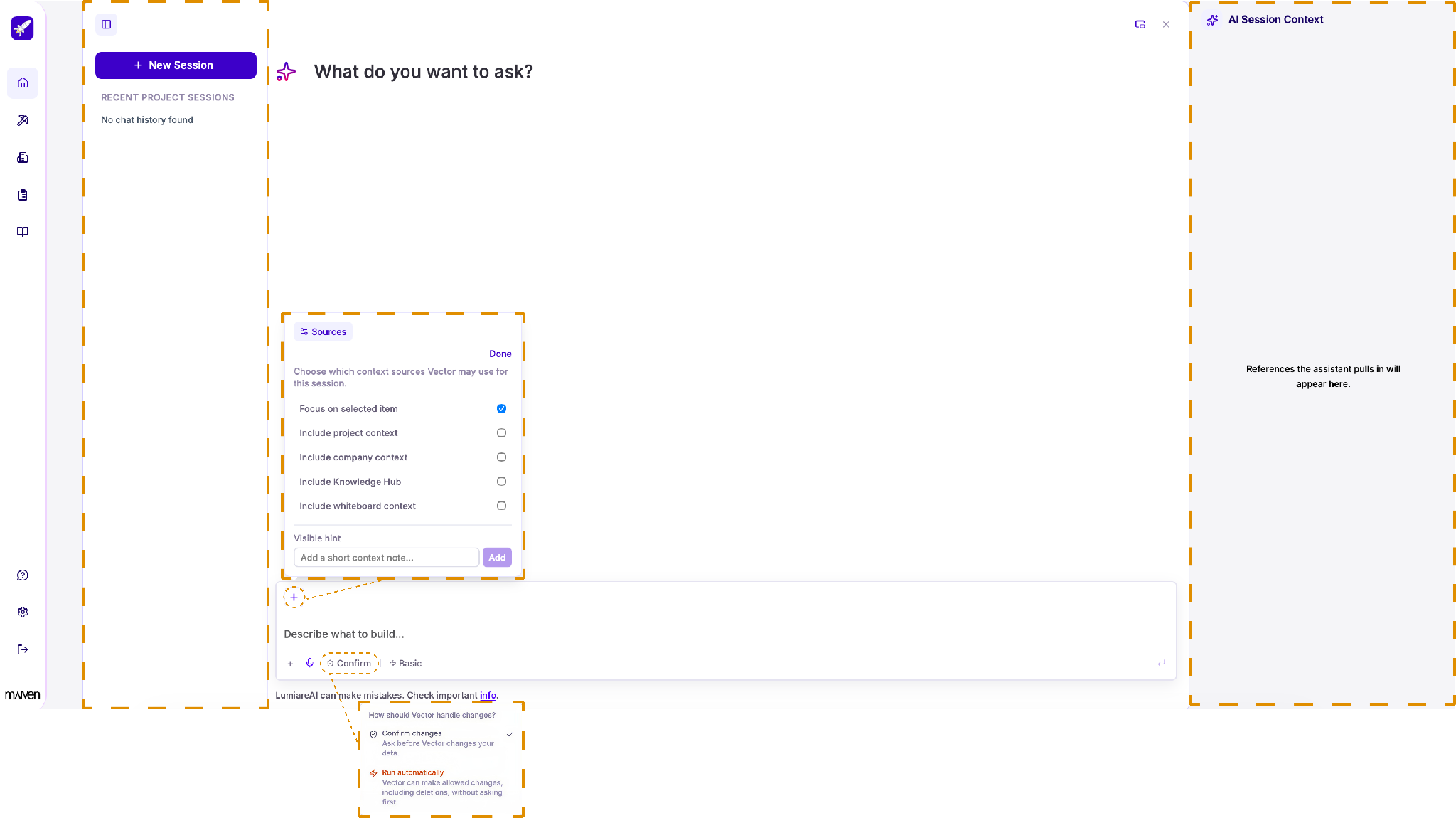
Sessions. Click + New Session to start a fresh conversation. Your previous conversations appear under Recent Project Sessions, so you can pick up where you left off.
Choose your sources. Click + above the message field to choose which information Vector can use in this session. You can focus on the selected item, or include project, company, Knowledge Hub, or whiteboard context. To give Vector extra guidance, add a short note under Visible hint and click Add. Click Done when you're finished.
Decide how Vector handles changes. Click Confirm below the message field to choose how Vector acts on your data:
- Confirm changes: Vector asks for your approval before changing anything.
- Run automatically: Vector makes allowed changes, including deletions, without asking first. Use this option with care.
Check the references. The AI Session Context panel on the right shows the references Vector pulls in, so you can see exactly what its answers are based on.
Give Vector specific context
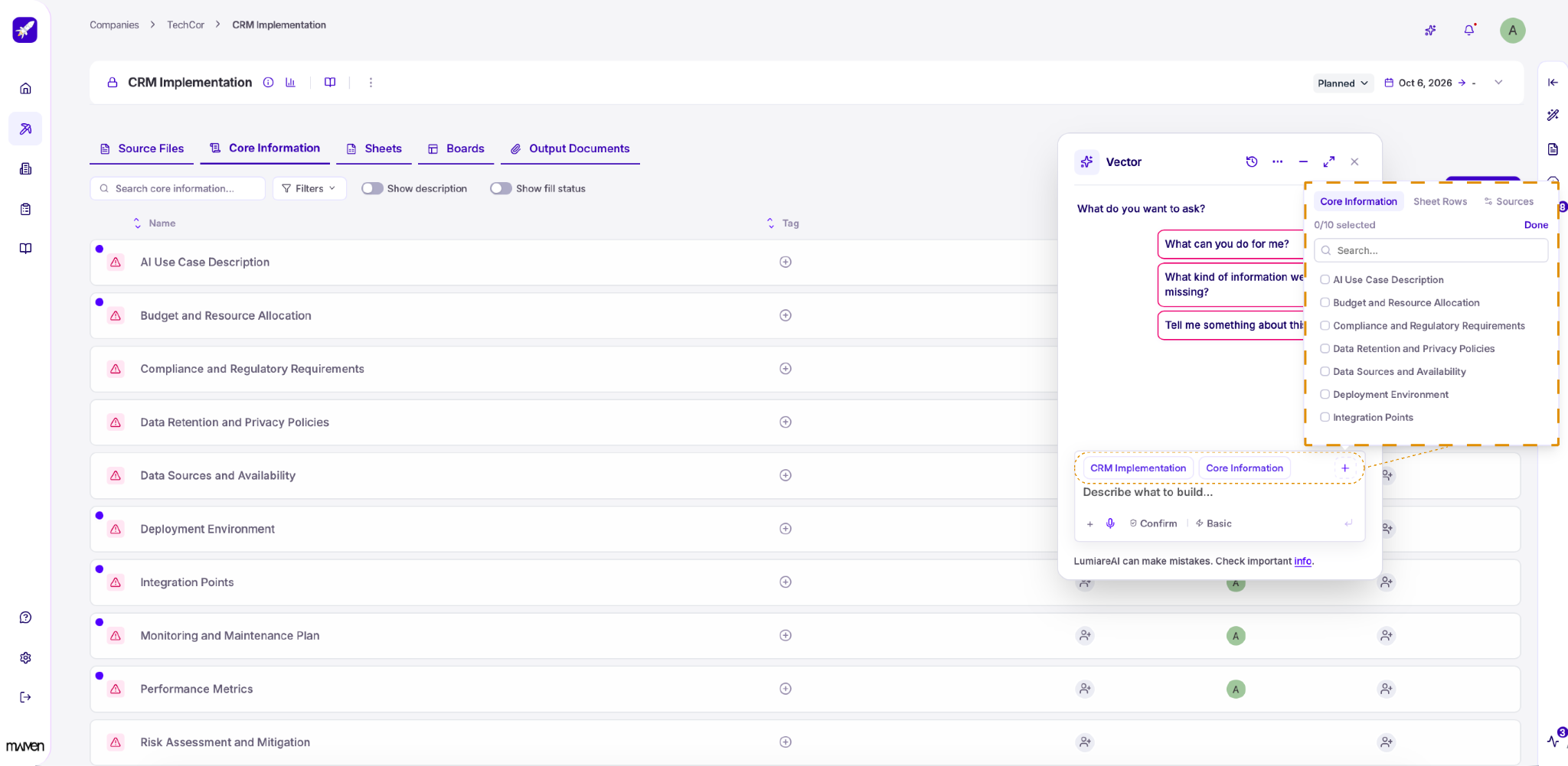
When you open Vector from inside a project, it automatically picks up where you are. The labels above the message field, such as CRM Implementation and Core Information, show the context Vector is currently using.
To point Vector to specific items, click + next to these labels. Choose items from the Core Information or Sheet Rows tabs, using the search field to find them quickly. You can select up to 10 items. Switch to the Sources tab to choose which broader context Vector can use.
Not sure where to start? Try one of the suggested prompts, such as "What kind of information are we missing?"