Smart Upload
Getting context into the project. Lumiare accepts documents, spreadsheets, audio, video and free text, processes them into datapoints, and reports exactly what happened to each file.
Add data to your project
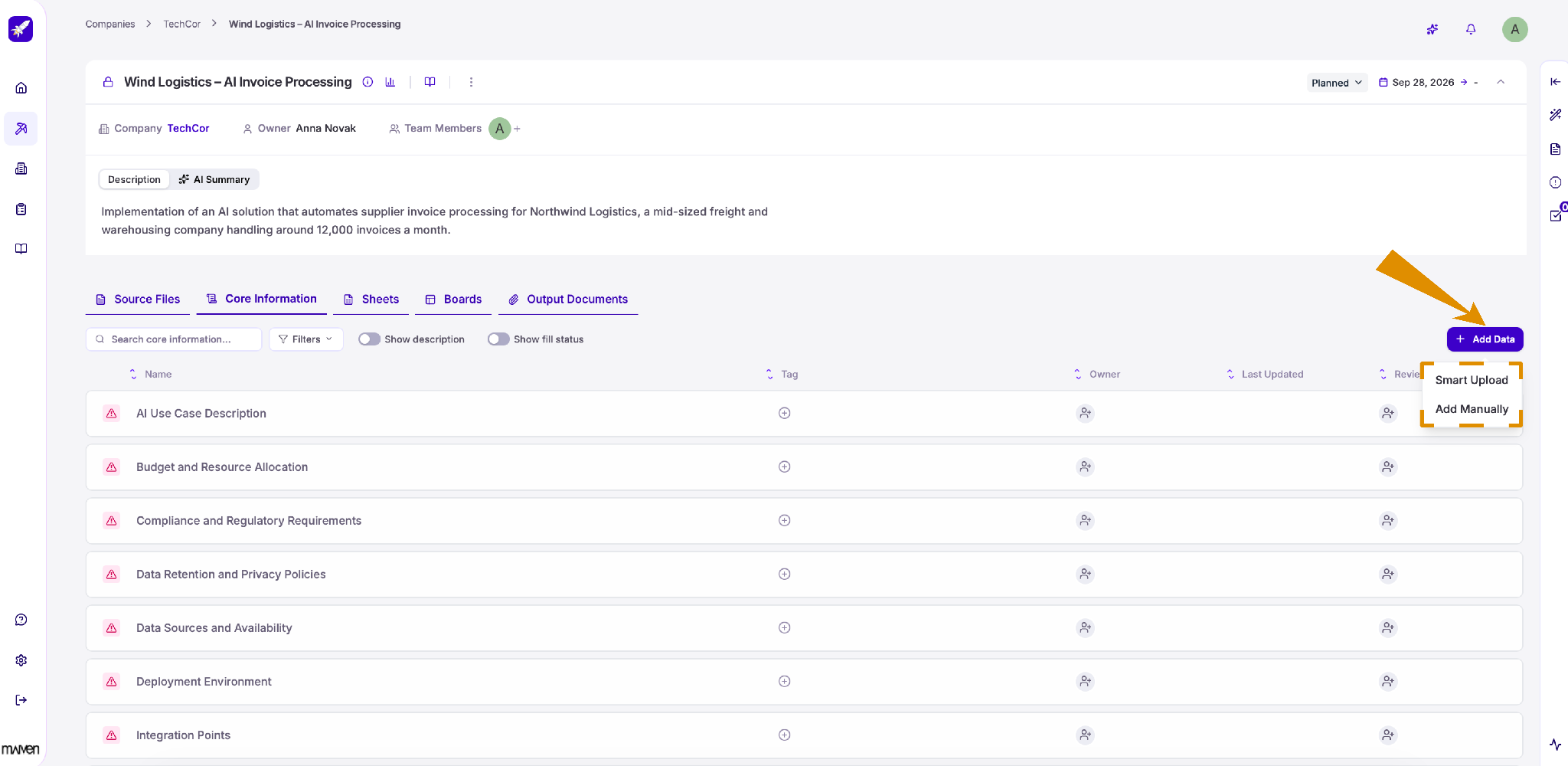
To start filling in your project's datapoints, click + Add Data in the top-right corner and choose how you'd like to add information:
-
Smart Upload: Upload your files, and Lumiare will extract the relevant information and fill in the matching datapoints for you.
-
Add Manually: Enter the information yourself.
Smart Upload
Feed your project with any information you have: files, meeting transcriptions, emails, and more.
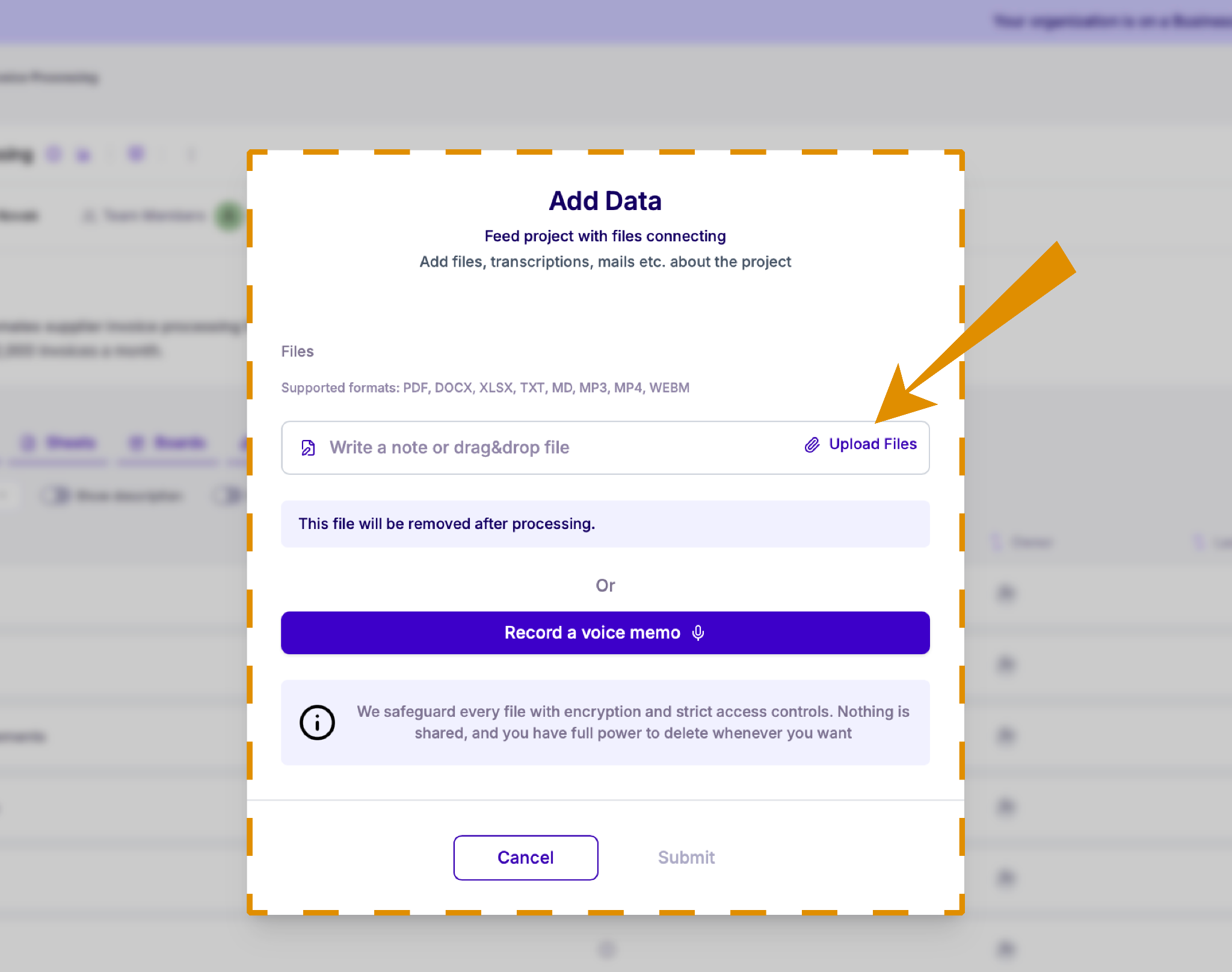
Click Upload Files or drag and drop files into the field. Supported formats are PDF, DOCX, XLSX, TXT, MD, MP3, MP4, and WEBM.
You can also type a note directly into the field, or click Record a voice memo to share information by speaking.
Lumiare will process your data and fill in the matching datapoints. Uploaded files are removed after processing, and all data is protected with encryption and strict access controls.
Track your uploads
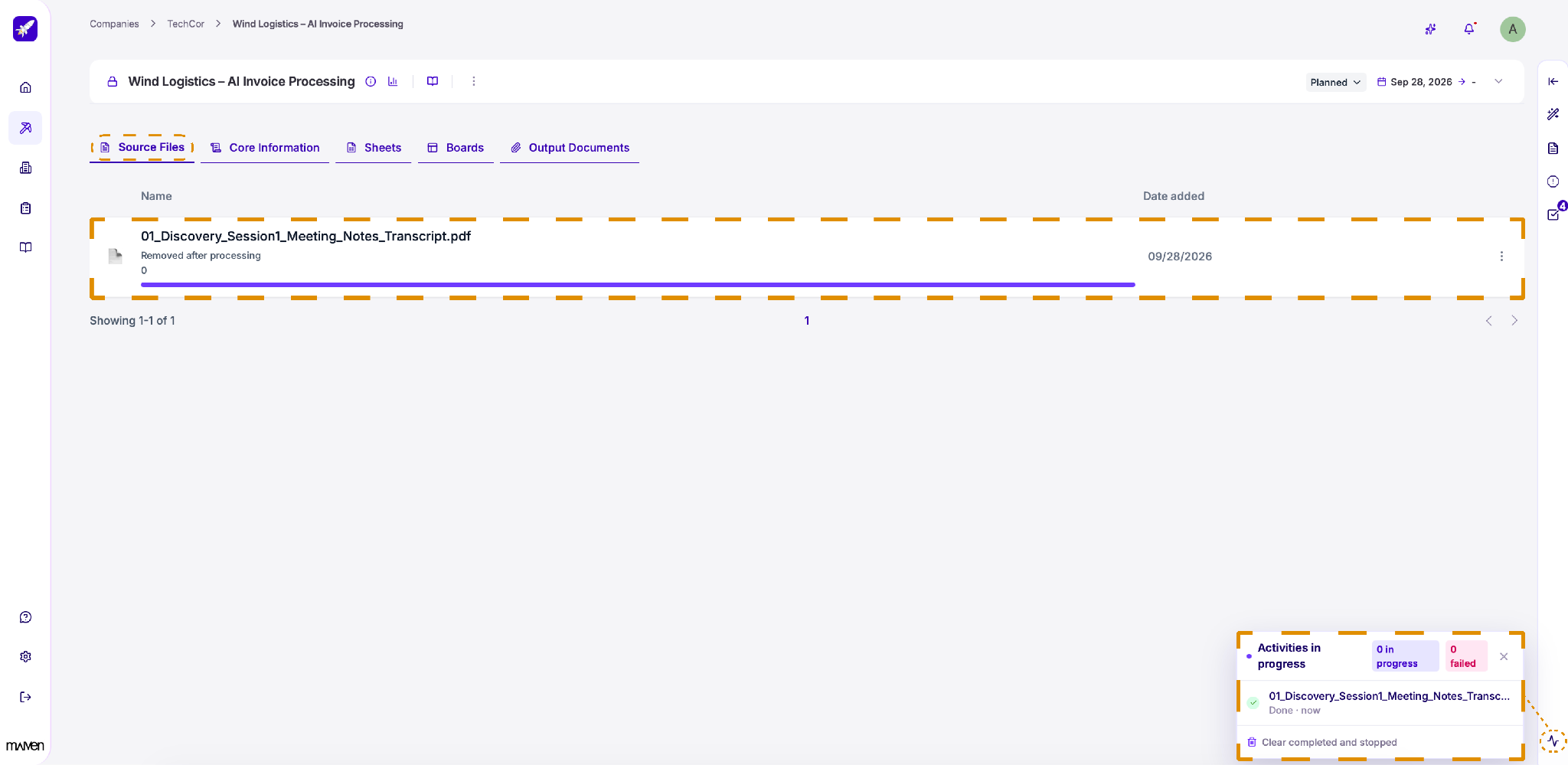
Every file you upload appears in the Source Files tab, along with the date it was added and its processing status. Once processing is complete, the file is removed and marked Removed after processing, while the extracted information stays in your project.
To follow the progress of your uploads, open the Activities panel using the icon in the bottom-right corner. It shows which tasks are in progress, completed, or failed. Click Clear completed and stopped to tidy up the list.
Review new datapoints
After processing, new datapoints created from your uploaded data appear in the Core Information tab. They're marked with a blue dot so you can easily spot what's new.
Add a datapoint manually
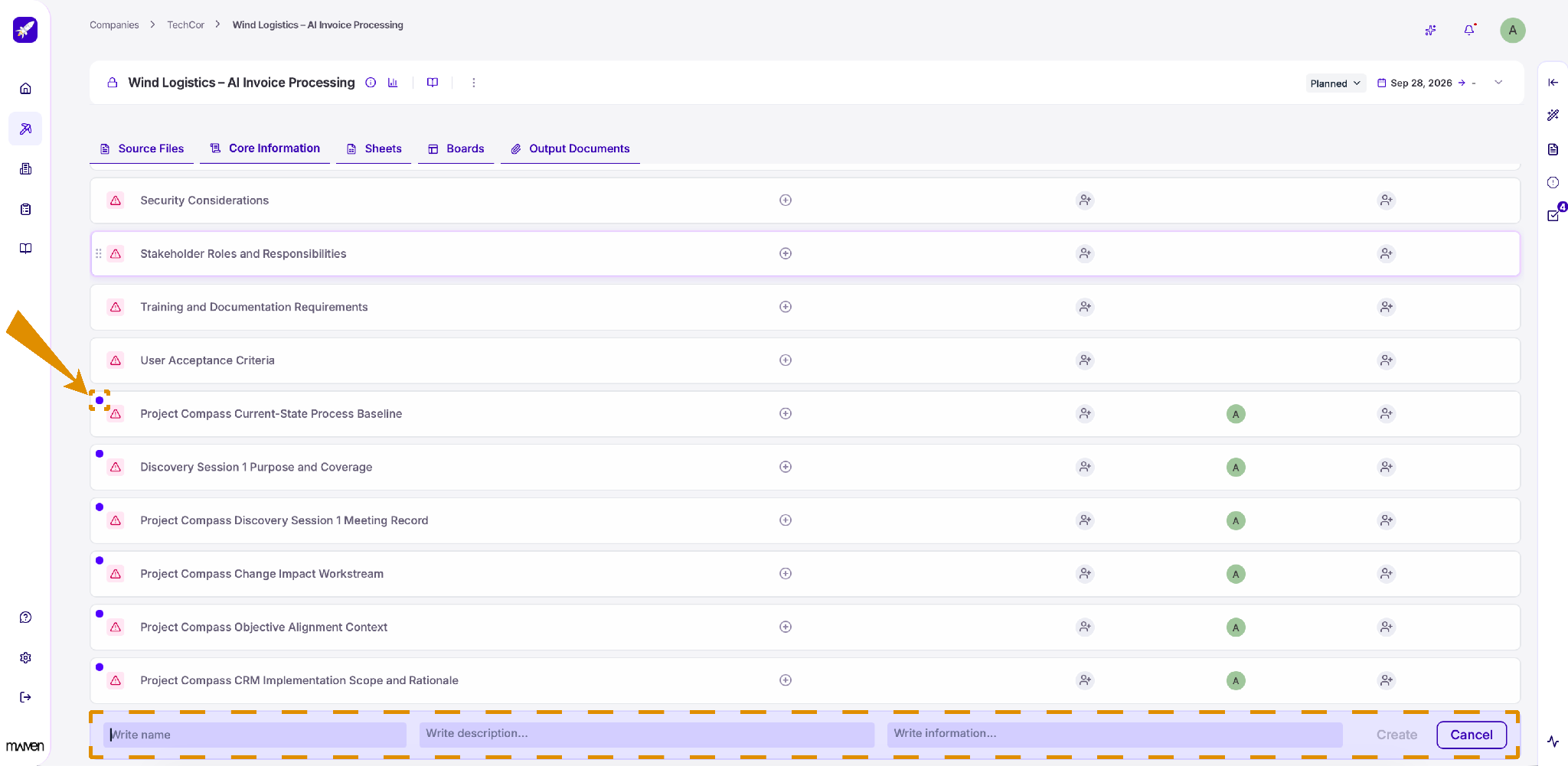
To add a datapoint yourself, choose Add Manually from the + Add Data menu. A new row appears at the bottom of the list. Enter a name, a description, and the information it should contain, then click Create.