AI Actions
Save time on routine setup with AI Actions. Click the magic wand icon in the right-hand toolbar to open the panel, then choose an action:
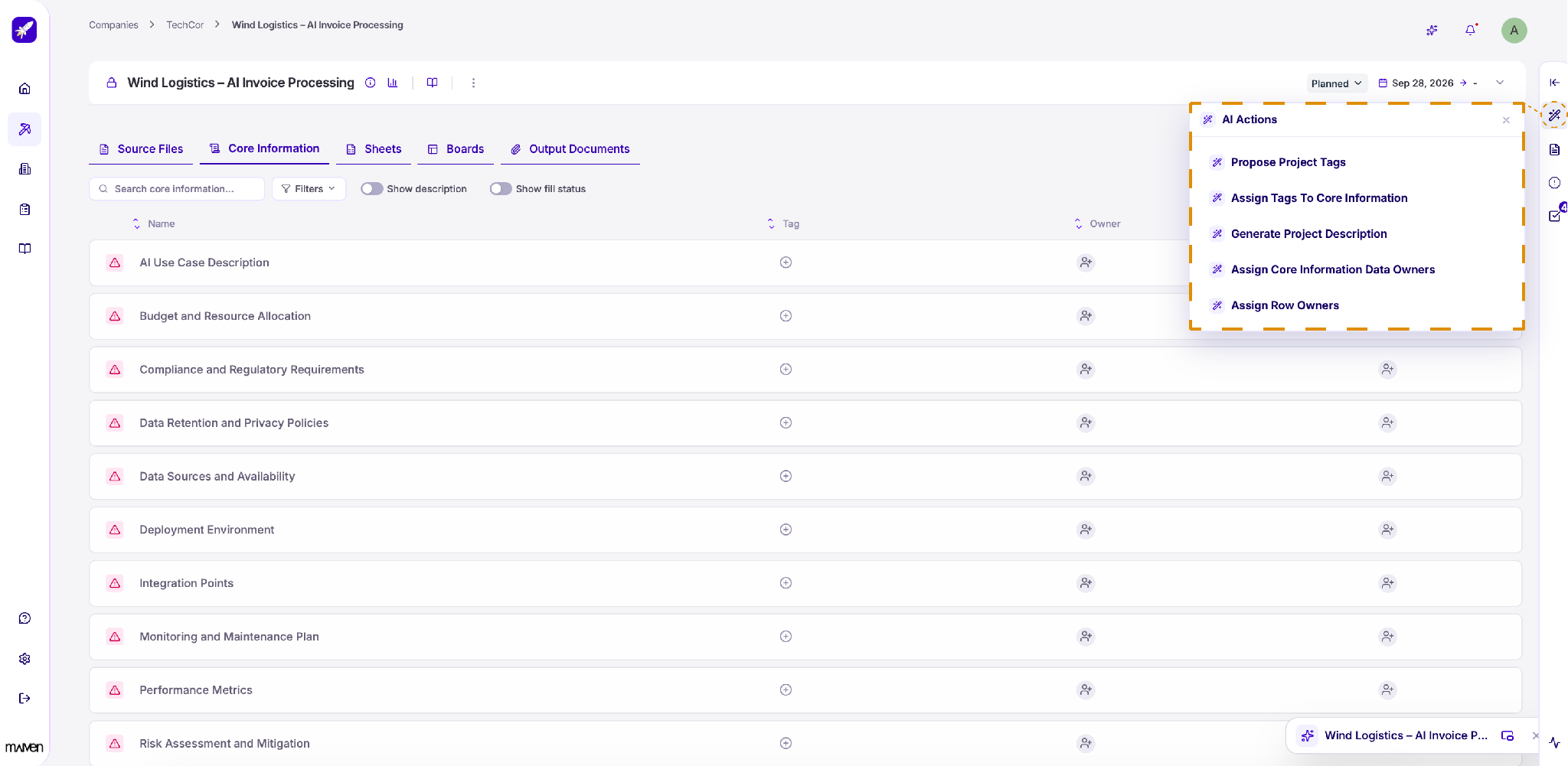
Propose Project Tags
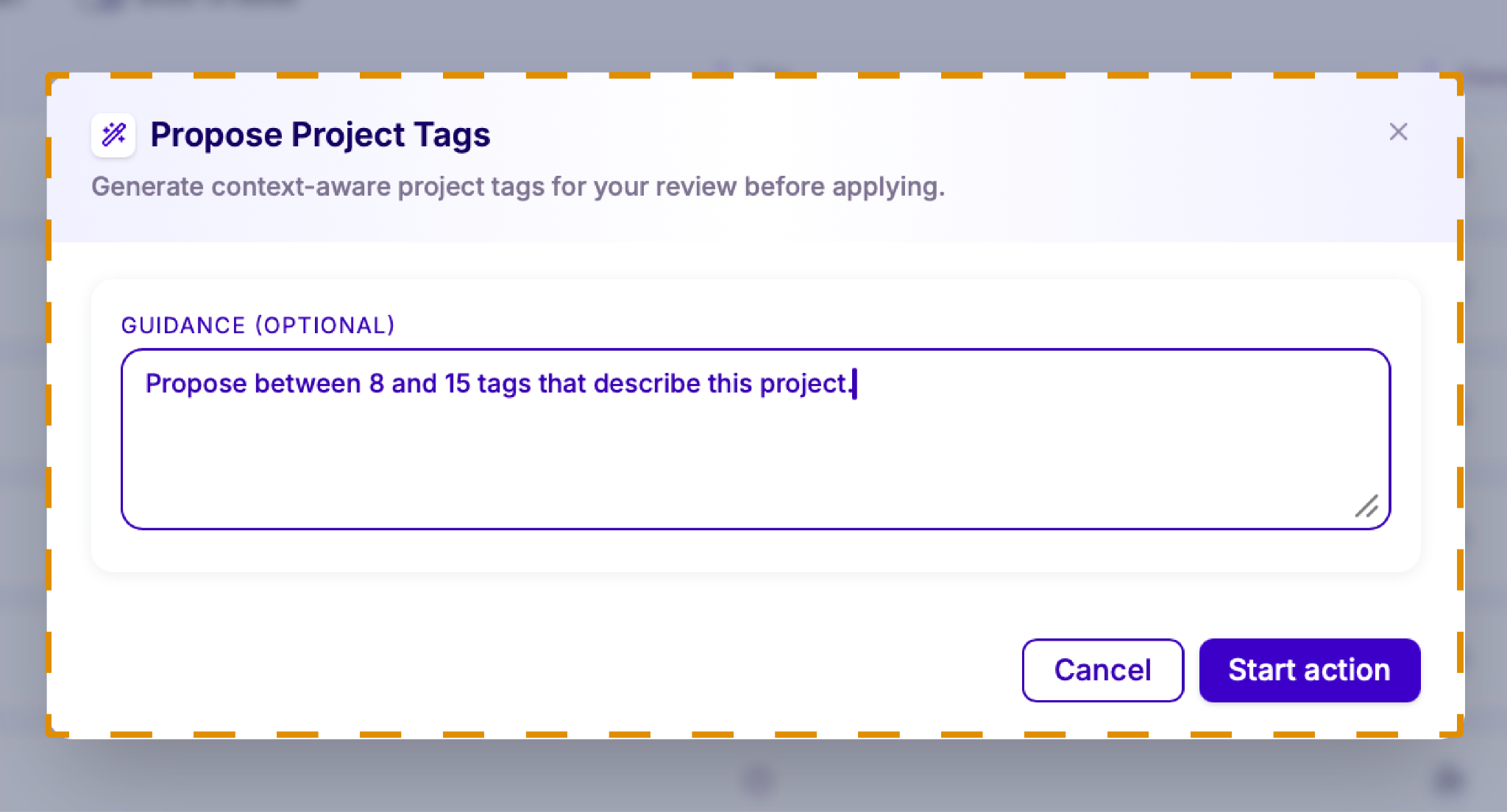
Use Propose Project Tags to let Lumiare suggest tags based on your project's context. Guidance is optional, so you can leave the field empty and let the AI decide, or add context to shape the results, such as how many tags you want or which topics to focus on.
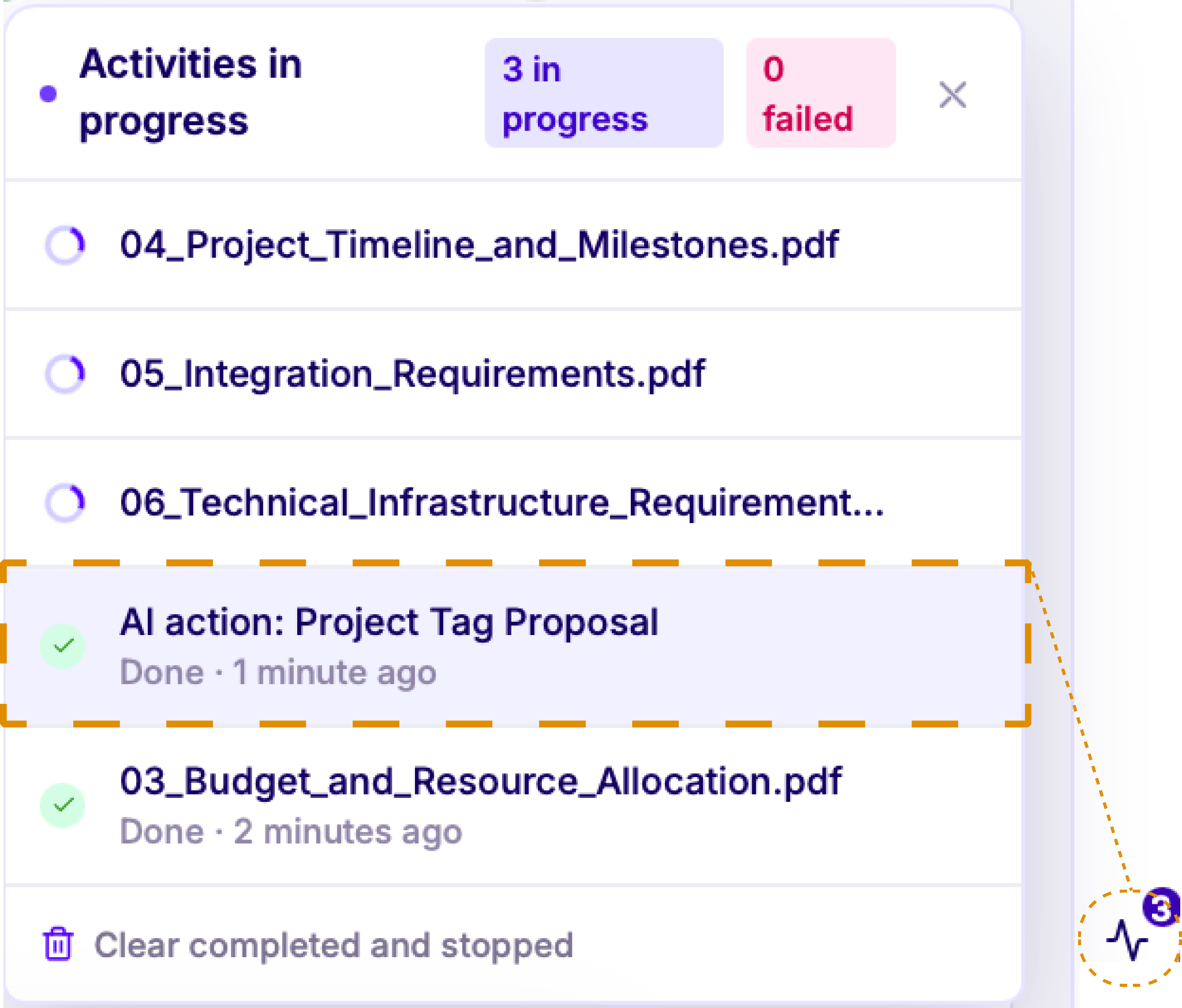
To find the generated tags, open the Activities panel using the icon in the bottom-right corner. Click AI action: Project Tag Proposal to see the tags Vector AI has prepared for your project.
Accept or dismiss the suggested tags. Each proposed tag comes with a short description and a confidence score, so you can judge how well it fits.
Click Accept to create the tag or Dismiss to discard it. To accept all remaining suggestions at once, click Apply Remaining.

Assign tags to Core Information
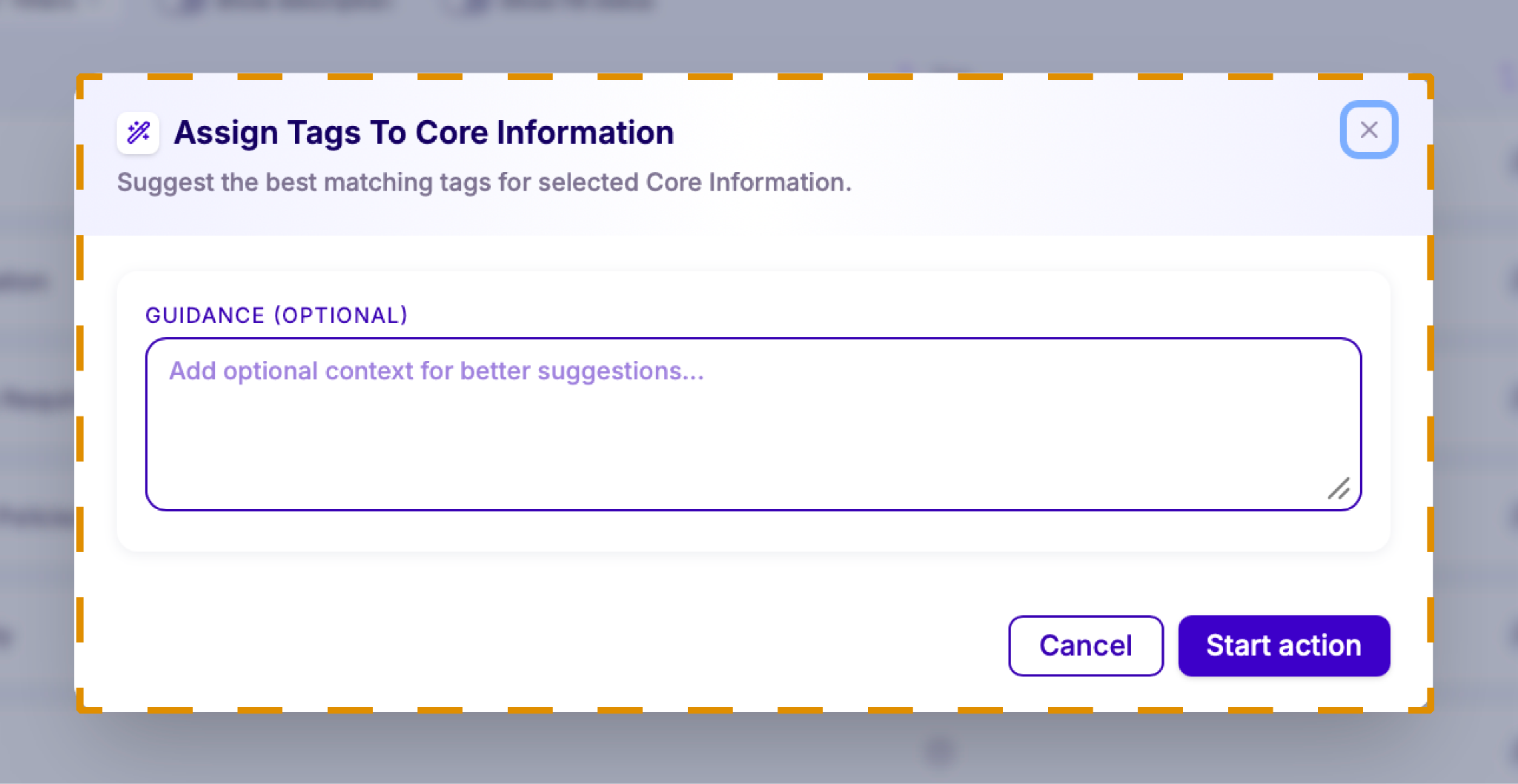
Once your project has tags, use Assign Tags To Core Information to match them to your datapoints automatically. Lumiare suggests the best-fitting tags for the selected Core Information.
You can add optional guidance for better suggestions, for example "Prioritize tags related to compliance and integration."
Generate a project description
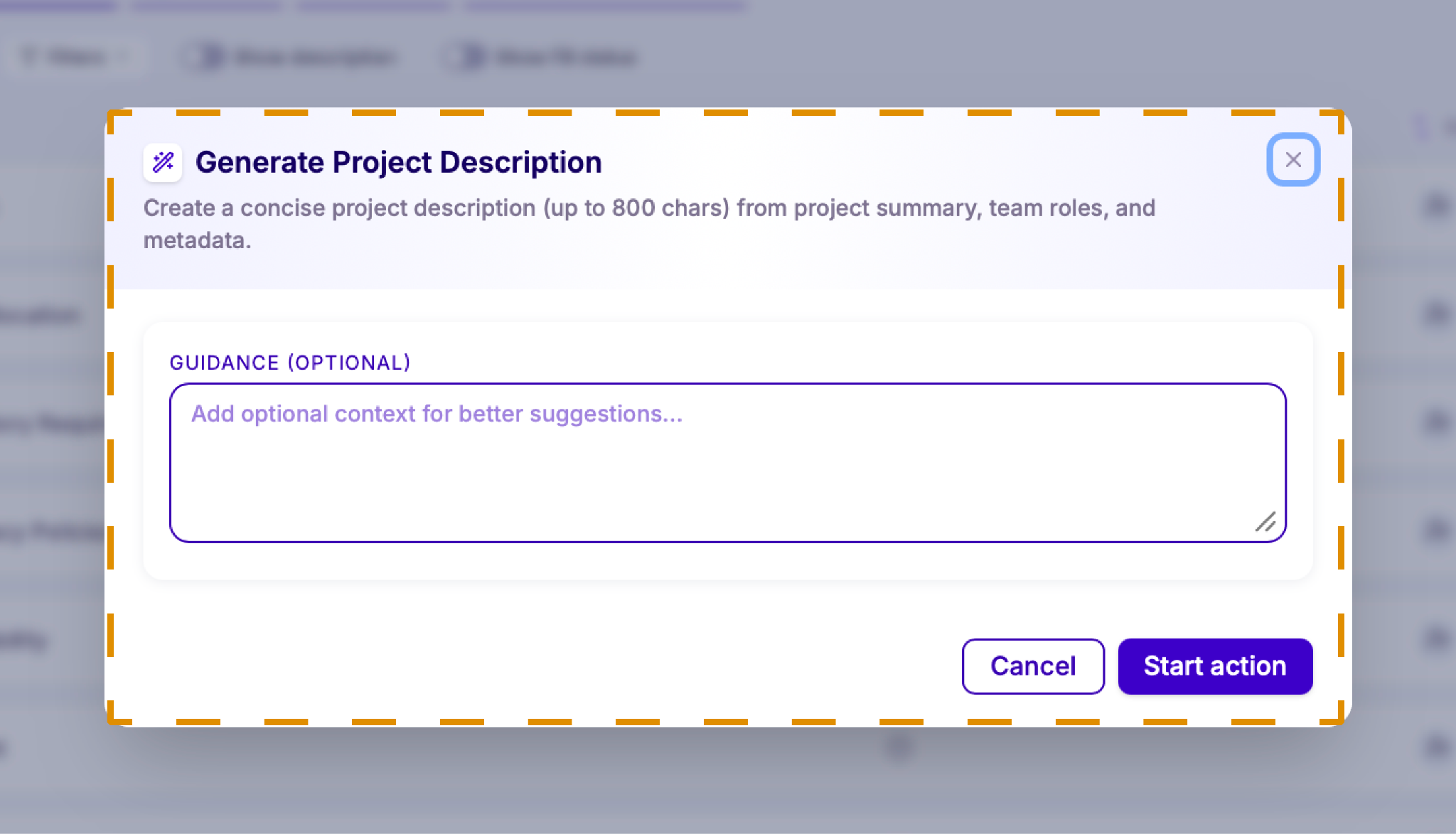
Use Generate Project Description to create a concise summary of your project, up to 800 characters. Lumiare builds it from the project summary, team roles, and project details.
You can add optional guidance to shape the result, for example "Focus on business goals and expected outcomes."
Assign data owners
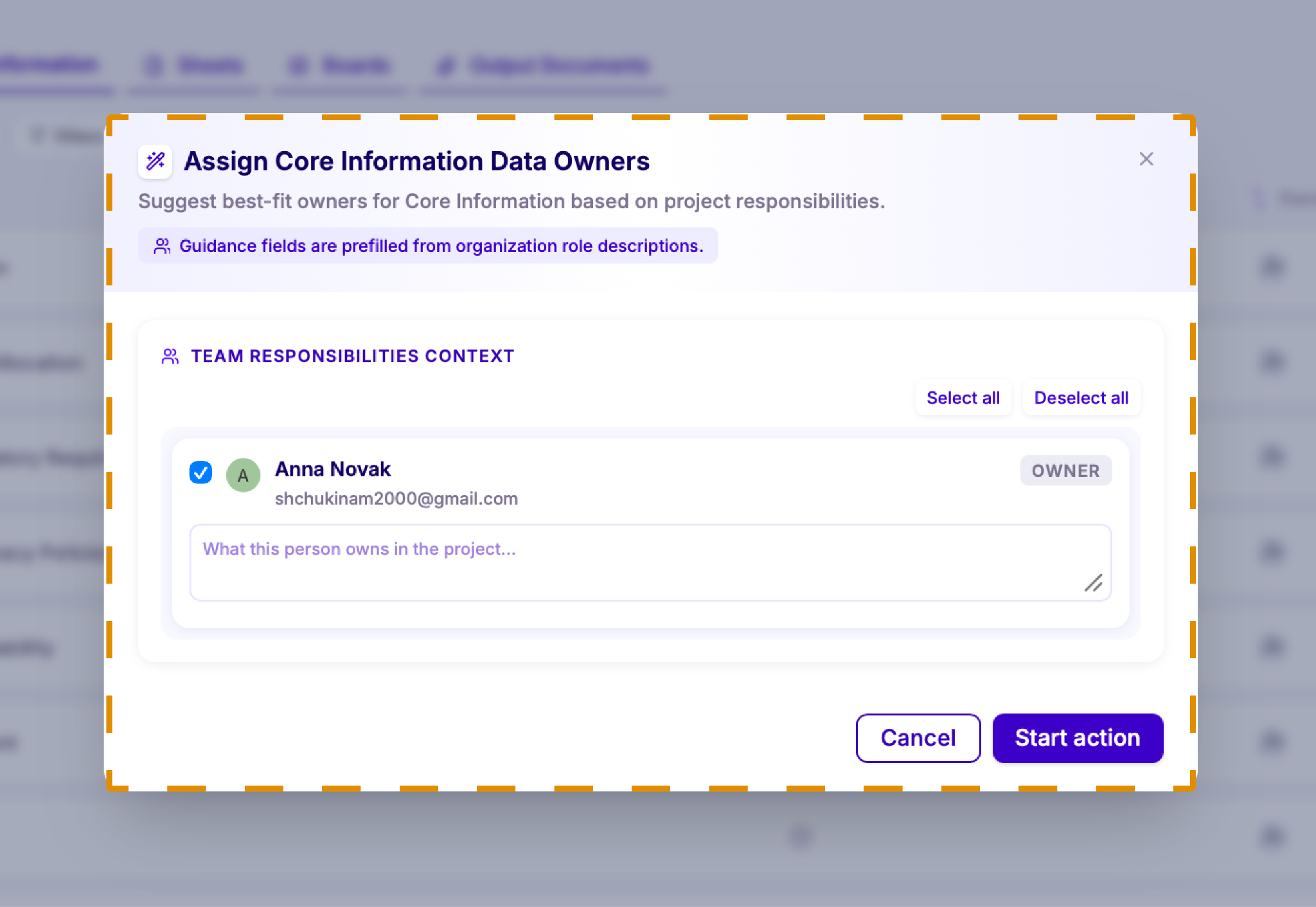
Use Assign Core Information Data Owners to let Lumiare suggest the best person to own each datapoint, based on project responsibilities.
Select the team members who should be considered, or use Select all and Deselect all. For each person, describe what they're responsible for in the project, for example "Owns budget, contracts, and vendor management." If roles are already defined in your organization, these fields are prefilled from those role descriptions.
Assign row owners
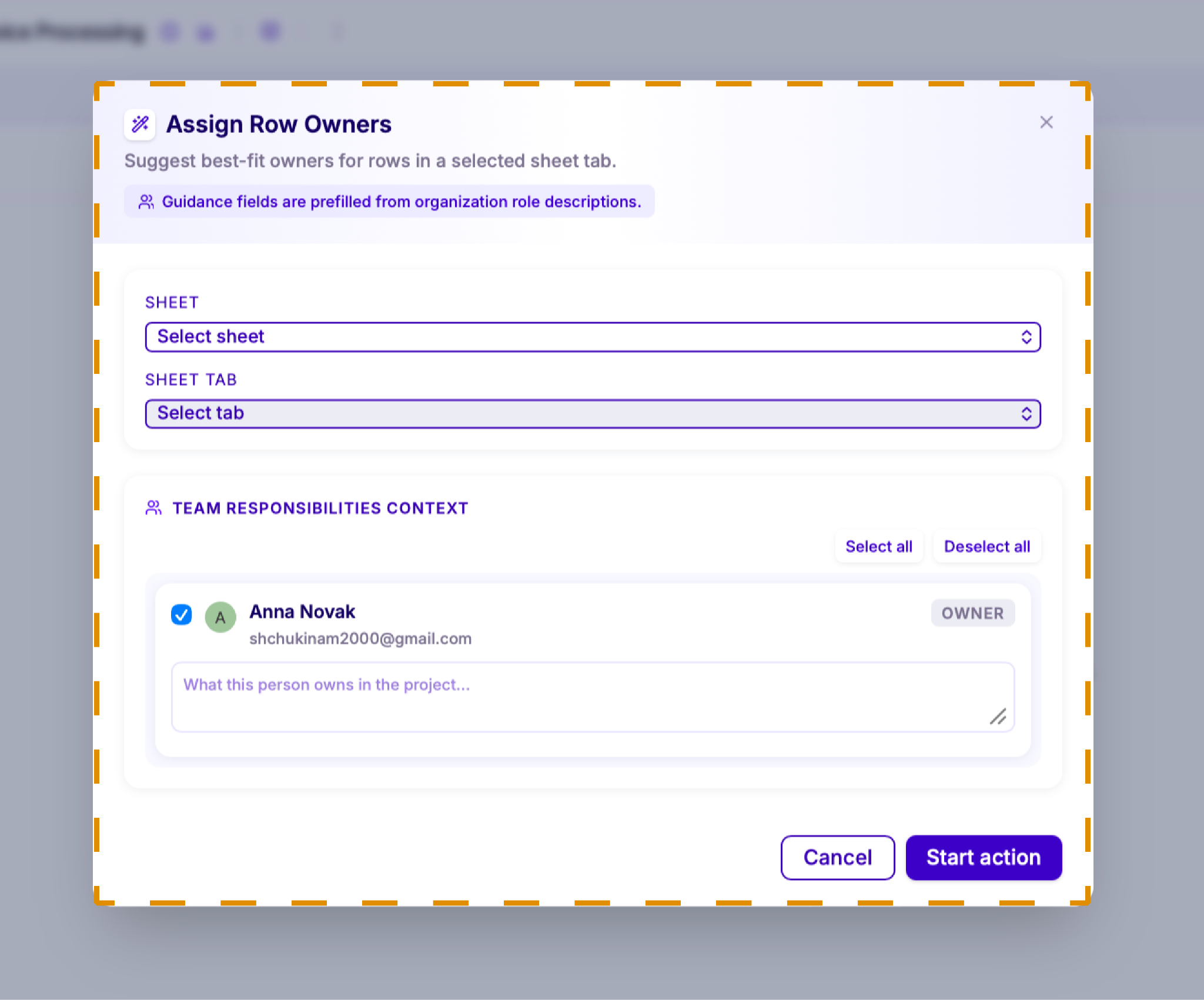
Use Assign Row Owners to let Lumiare suggest the best person to own each row in a Sheet. First, choose the Sheet and the Sheet Tab you want to work with.
Then select the team members who should be considered, or use Select all and Deselect all. For each person, describe what they're responsible for in the project. If roles are already defined in your organization, these fields are prefilled from those role descriptions.