Tasks
Tasks are generated from project content by AI and can be created manually; each has a description, status and assignee, and sits inside the project rather than in a separate tracker.
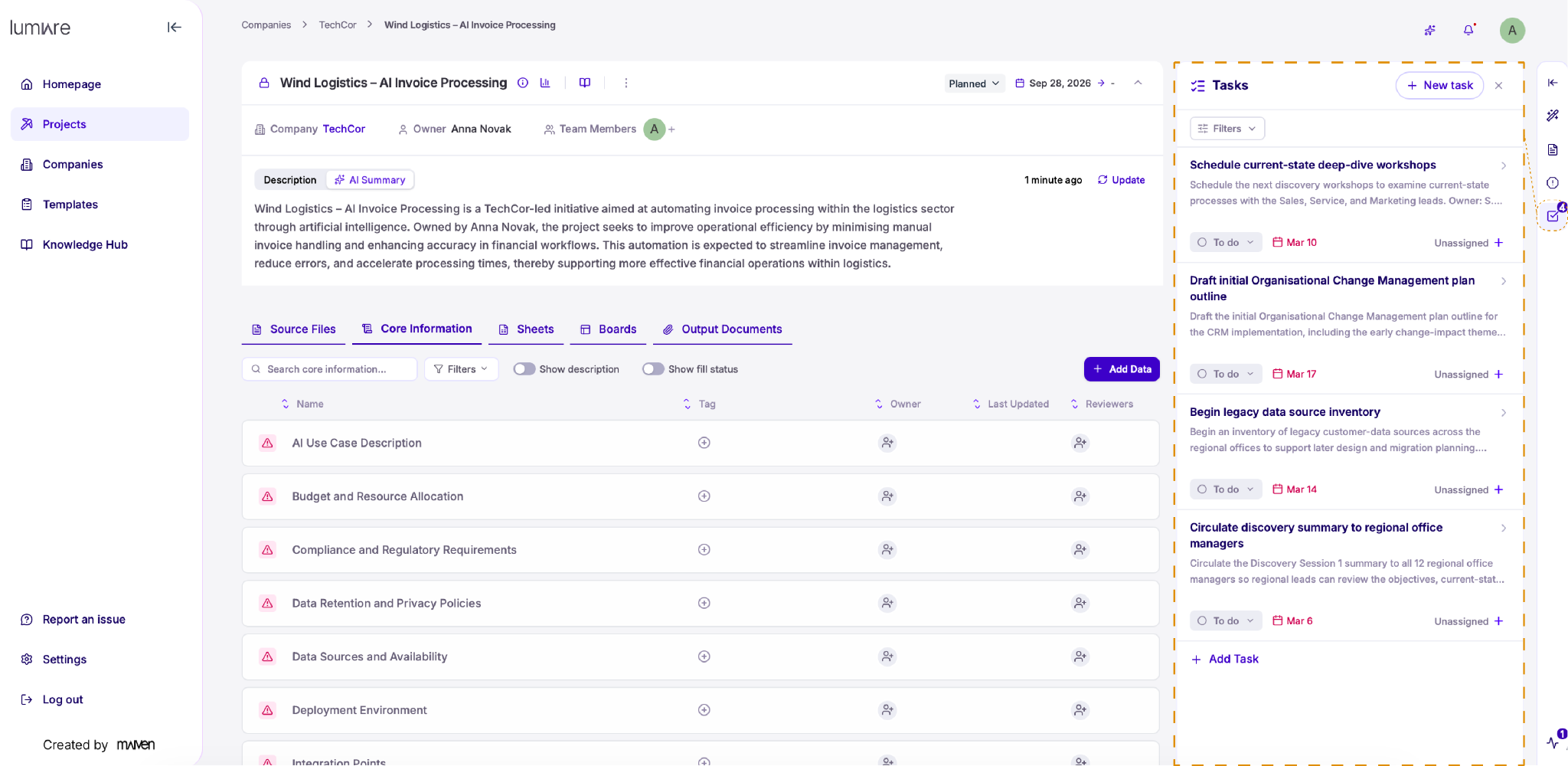
Keep track of your project's next steps in the Tasks panel. Open it from the checklist icon in the right-hand toolbar. The number on the icon shows how many tasks are waiting.
Lumiare can create tasks automatically from the information you upload, such as action items mentioned in meeting notes.
Each task shows a short description, its status, a due date, and who it's assigned to.
Work with tasks
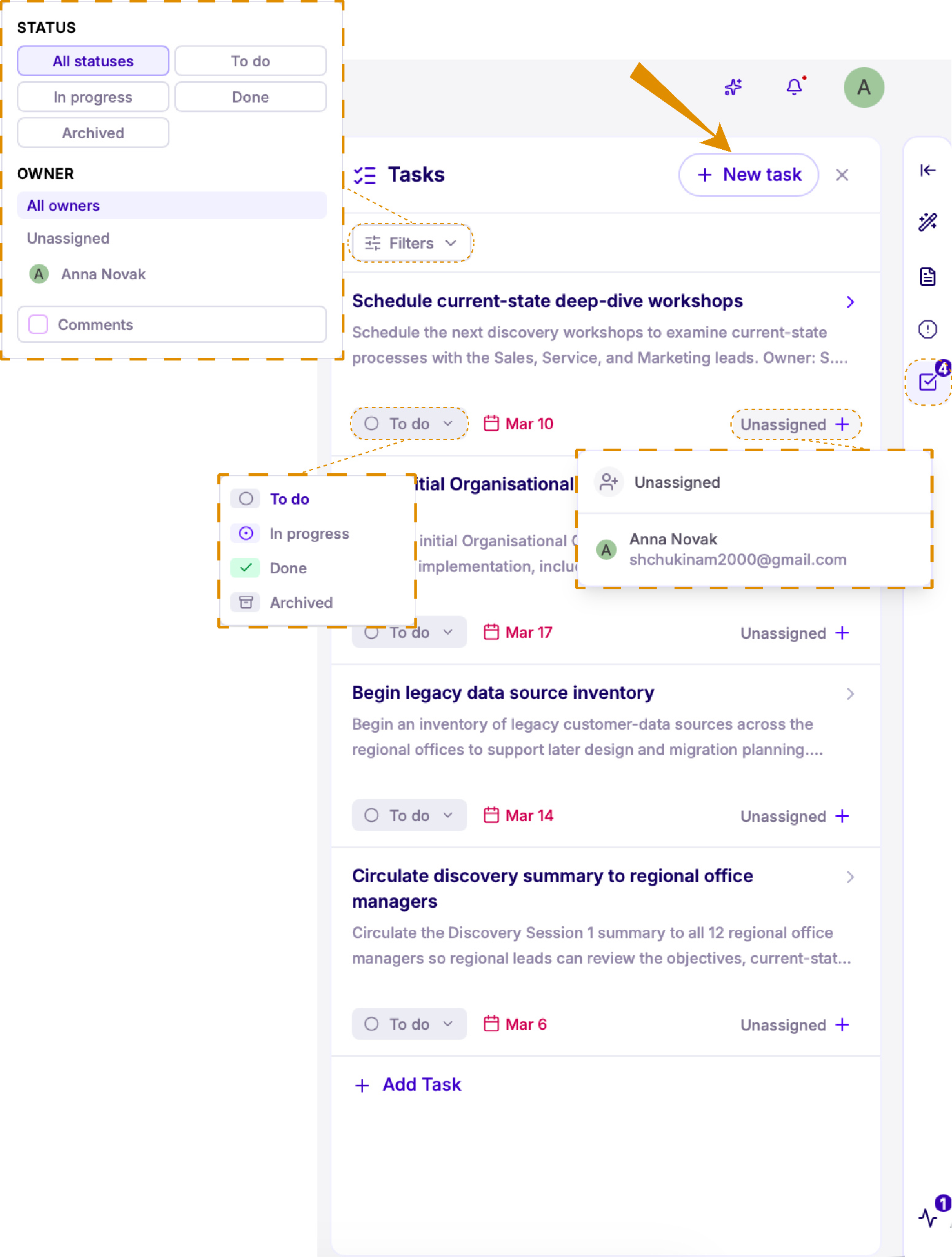
Update the status. Click the status dropdown on any task to change it to To do, In progress, Done, or Archived.
Assign an owner. Click + next to Unassigned and choose a team member from the list.
Filter your tasks. Click Filters to narrow down the list by status or by owner. You can show unassigned tasks only, or the tasks of a specific team member. Tick Comments to see only tasks that have comments.
Create a new task. Click + New task at the top of the panel to add a task of your own.
View task details
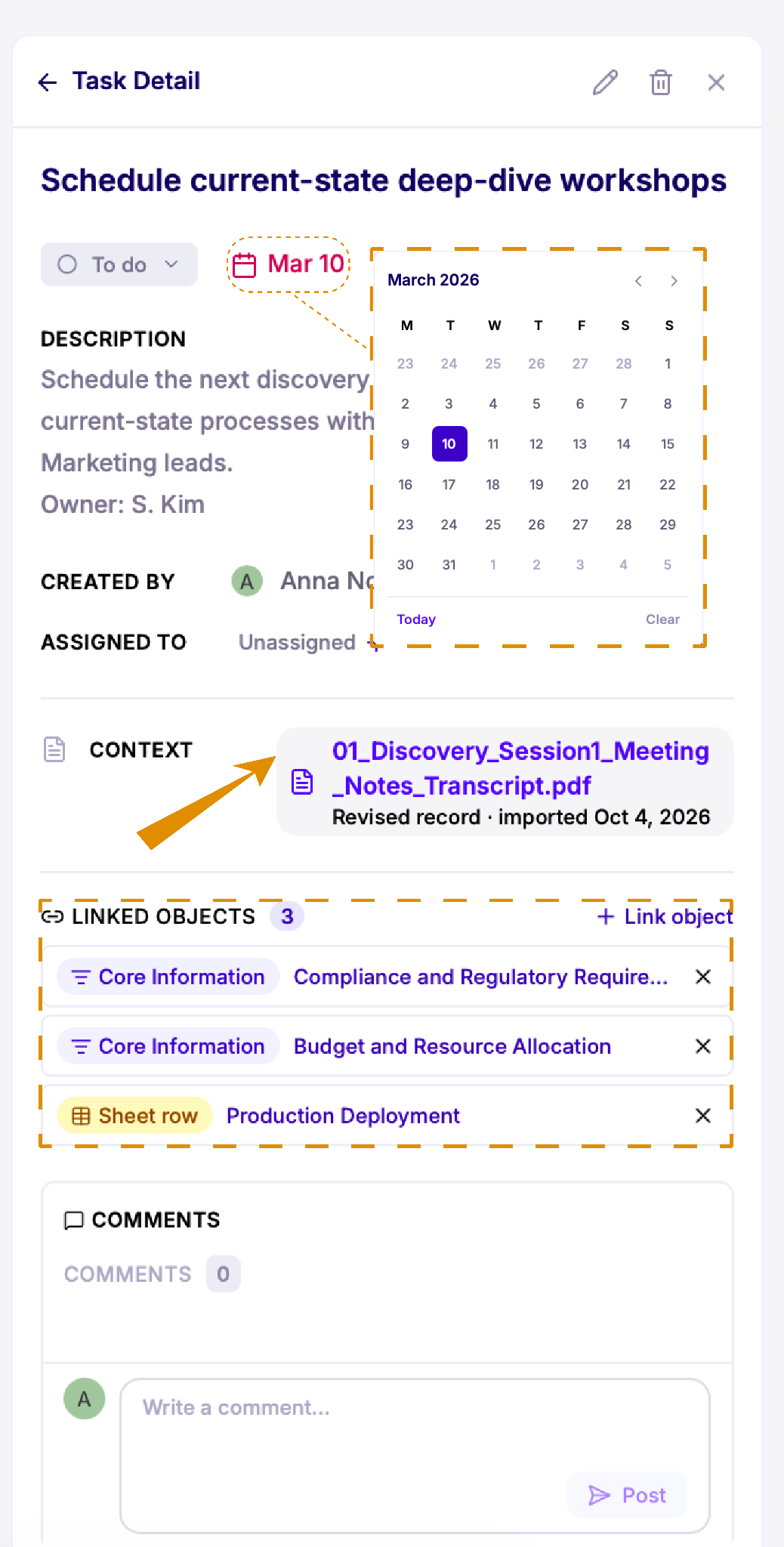
Click any task to open its details. Here you can see the full description, who created the task, and who it's assigned to.
Set a due date. Click the date to open the calendar and pick a new one.
Check the context. The Context section shows the source file the task was created from, so you can always trace where it came from.
Link related objects. Under Linked Objects, you can see the datapoints and sheet rows connected to the task. Click + Link object to add more.